Testimonials Management Guide
The Testimonials section allows administrators to manage client reviews displayed on the website homepage.
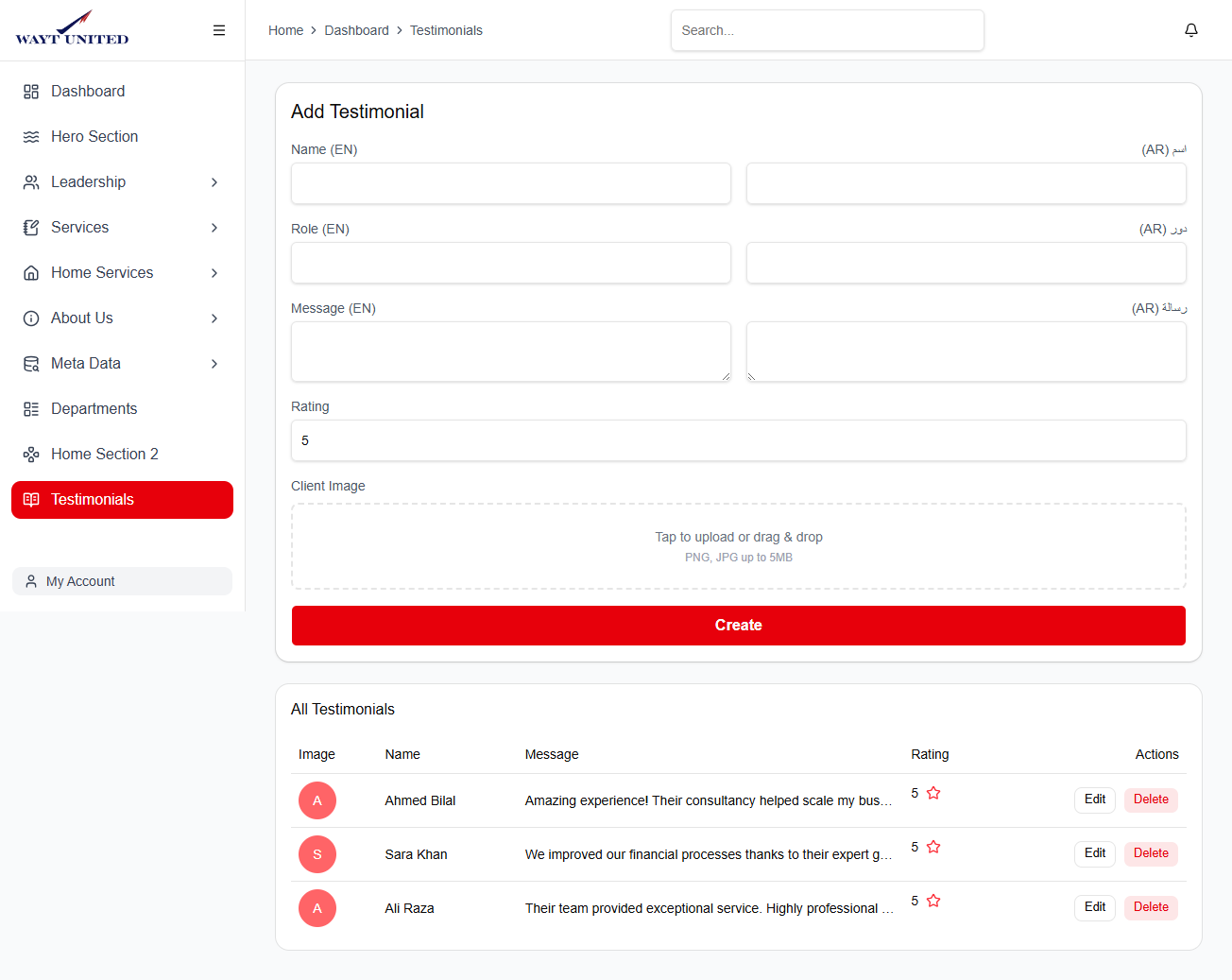
Features
- Add new testimonials
- Update existing testimonials
- Delete testimonials
- Upload client profile images
- Manage bilingual content (English & Arabic)
- Set testimonial ratings
Add New Testimonial
Use the top form section to create a new testimonial.
Required Fields
Client Name
Provide the client name in both languages:
- Name (EN)
- Name (AR)
Example:
John Smith
جون سميث
Client Role
Enter the client designation or company role.
Fields:
- Role (EN)
- Role (AR)
Example:
CEO
الرئيس التنفيذي
Testimonial Message
Add the customer feedback or review.
Fields:
- Message (EN)
- Message (AR)
Tips:
- Keep messages professional
- Use concise and readable text
- Avoid overly long paragraphs
Rating
Provide a rating between:
1 to 5
Example:
5
Client Image
Upload a customer profile image.
Supported Formats
- PNG
- JPG
- JPEG
Recommendations
- Use square images
- Keep image size optimized
- Use professional client photos
Update Testimonial
To edit an existing testimonial:
- Open the testimonial list
- Click the Edit button
- Update fields
- Click Update
The form will automatically load existing testimonial data.
Delete Testimonial
To remove a testimonial:
- Locate the testimonial
- Click the Delete button
- Confirm deletion
Deleted testimonials are permanently removed.
Testimonials List
All testimonials are displayed below the form section.
Desktop View
Desktop layout includes:
- Client Image
- Name
- Message
- Rating
- Actions
Mobile View
Mobile cards display:
- Profile image
- Client name
- Role
- Short testimonial preview
- Rating
- Edit/Delete buttons
Best Practices
Writing Testimonials
- Keep reviews authentic
- Use readable language
- Avoid excessive marketing text
- Highlight client satisfaction
Ratings Guide
| Rating | Meaning |
|---|---|
| 5 | Excellent |
| 4 | Very Good |
| 3 | Good |
| 2 | Average |
| 1 | Poor |
Image Guidelines
Recommended image settings:
Format: JPG or PNG
Shape: Square
Quality: Optimized
Avoid:
- Blurry photos
- Very large files
- Low-quality screenshots
Workflow Example
Create a Testimonial
- Enter client name
- Add role/designation
- Write testimonial message
- Set rating
- Upload image
- Click Create
Notes
- English and Arabic content are managed separately
- Ratings should remain between 1 and 5
- Uploaded images are previewed before saving
- Testimonials update instantly a