home-services
Home Services
Use this section to manage homepage service cards.
You can:
- Add new services
- Update services
- Delete services
- Preview service cards
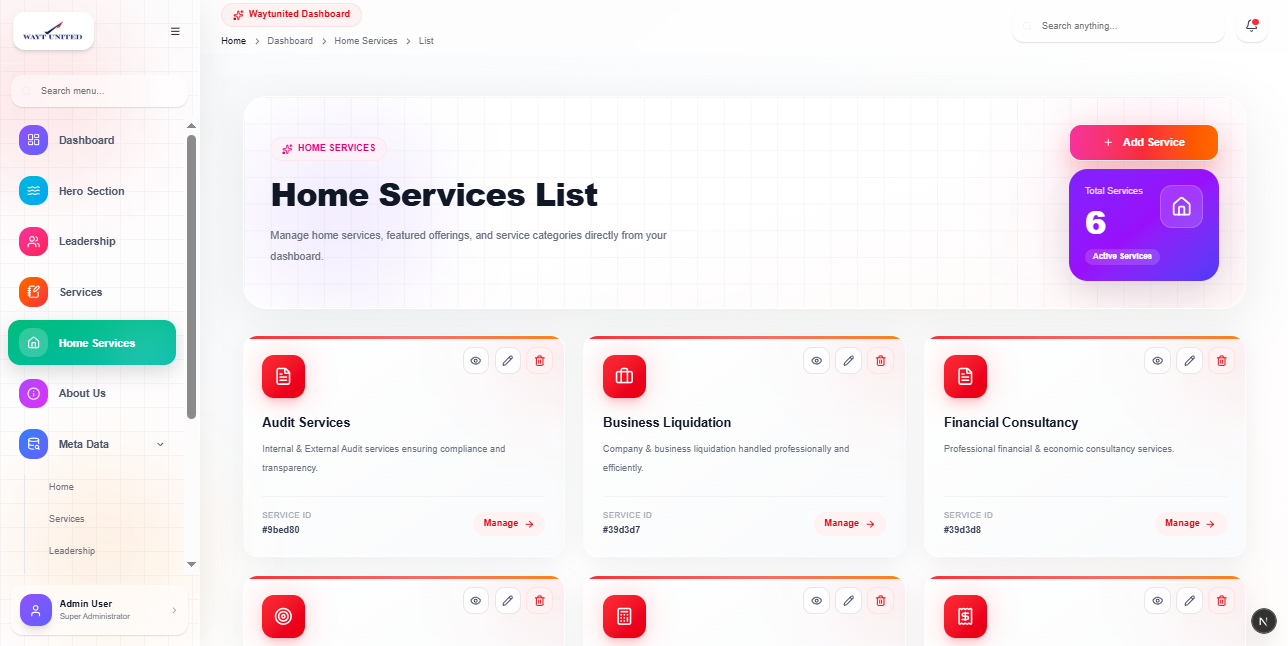
Open Home Services
From the dashboard sidebar:
Home Services
Add New Service
Click the Add New button.
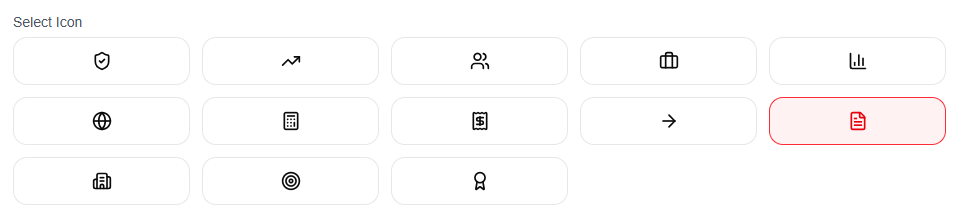
Select Service Icon
Choose an icon for the service.
The selected icon will automatically generate the service key.
Available icons include:
- ShieldCheck
- Users
- Globe
- Calculator
- Building2
- Award
Enter Service Title
Fill both title fields:
- Title (EN)
- Title (AR)
Enter Description
Add service descriptions in both languages.
Fields:
- Description (EN)
- Description (AR)
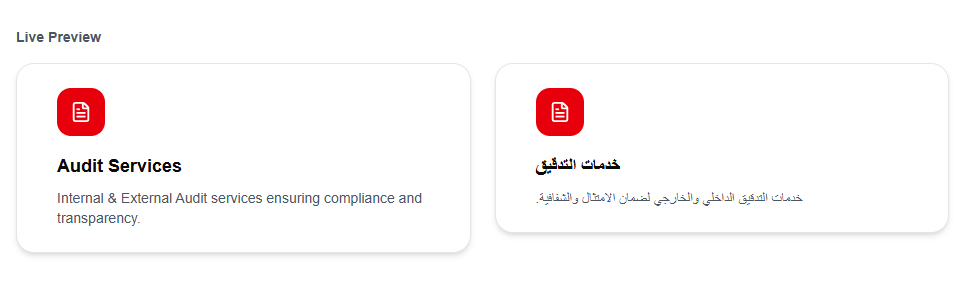
Live Preview
The system automatically shows a live preview of the service card.
Preview includes:
- Icon
- Title
- Description
Save Service
Click:
Add Service
or
Update Service
to save changes.
Edit Service
To update a service:
- Open Home Services list
- Click the Edit icon
- Update information
- Save changes
Delete Service
To remove a service:
- Click the Delete icon
- Confirm deletion
View Service
Click the View icon to see service details.
Notes
- Fill both English and Arabic content.
- Keep descriptions short and clear.
- Use relevant icons for better appearance.